Your getting-started guide
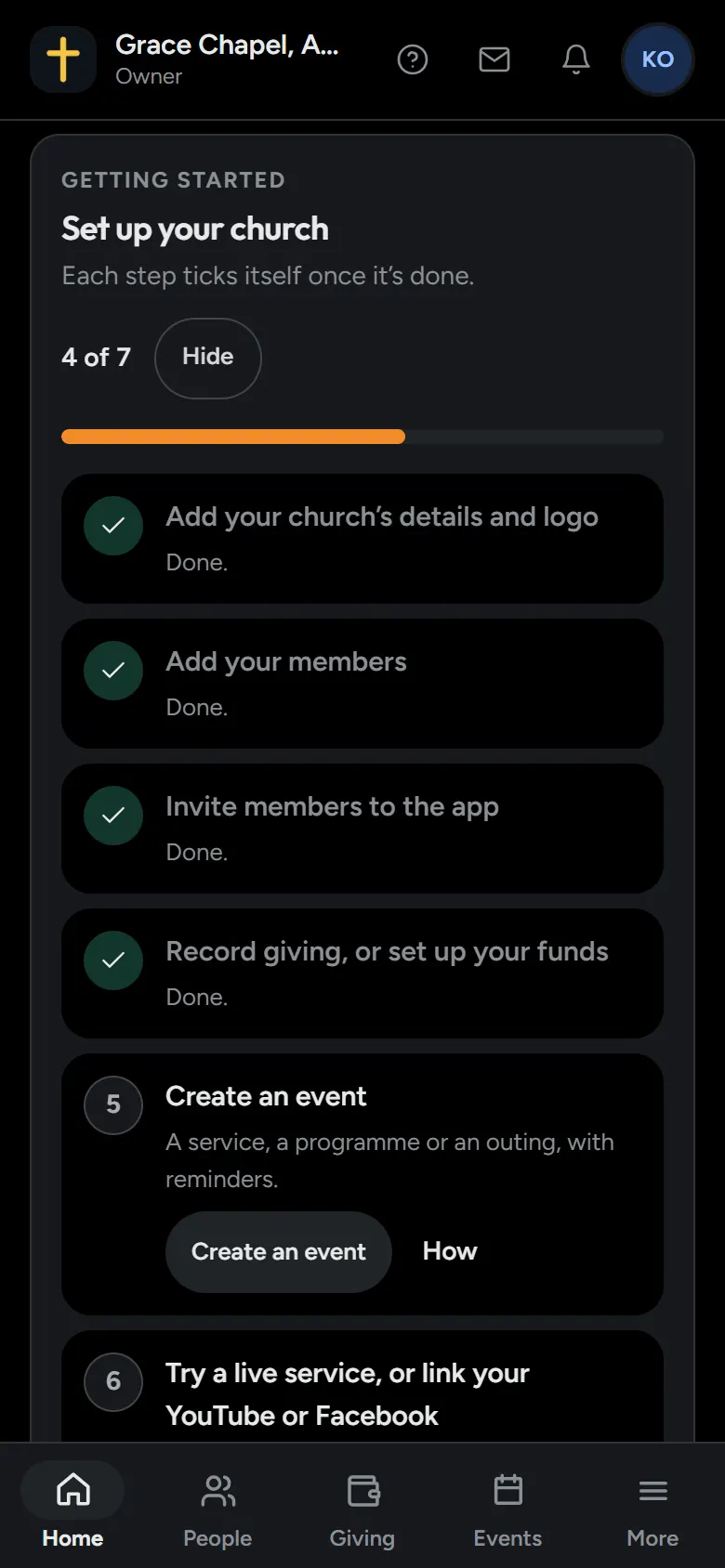
Your dashboard’s home has a short guide for the owner and admins. Each step ticks itself once it’s done, and the guide shows how far you are, like “3 of 7”.
Hide it whenever you like. The Help menu at the top of the dashboard, the question mark, brings it back.
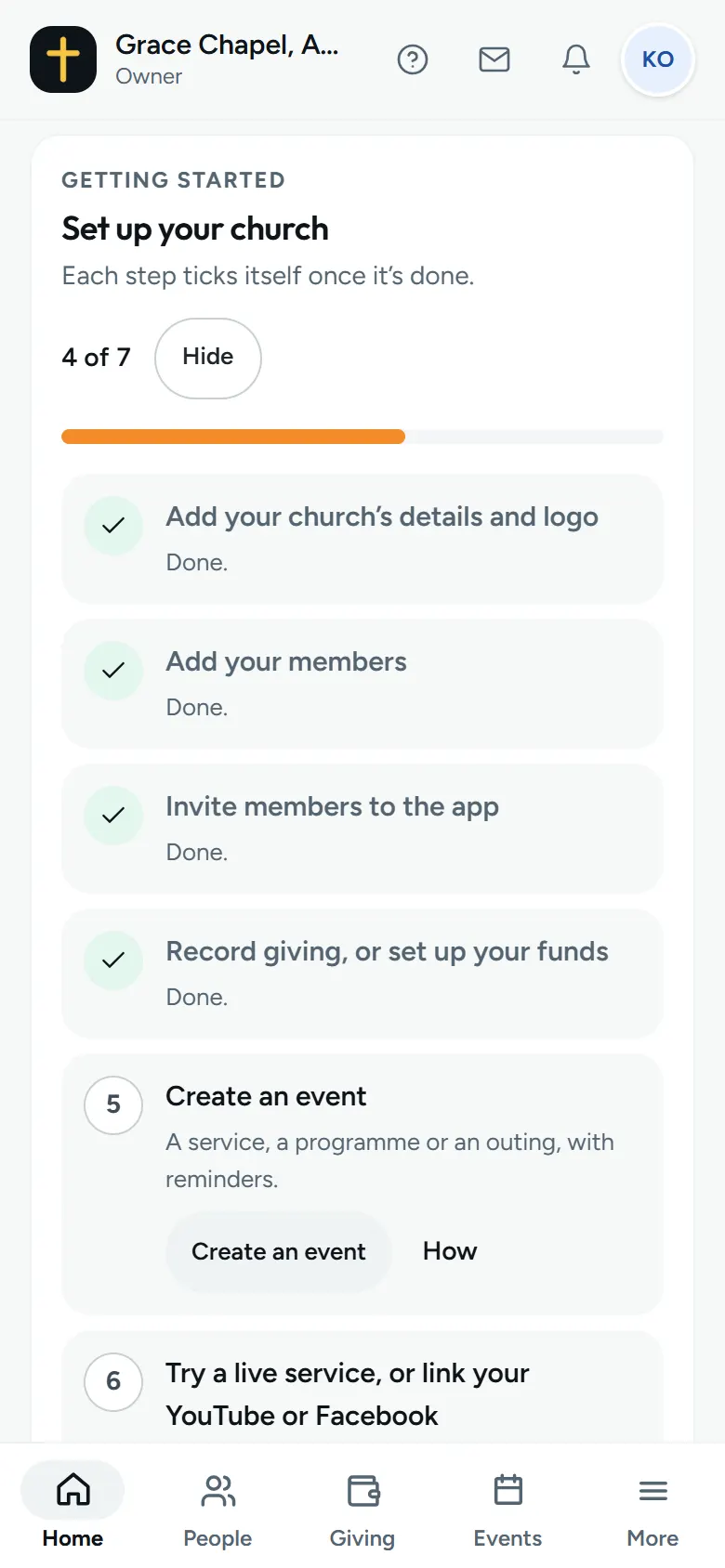
Add your church’s details and logo
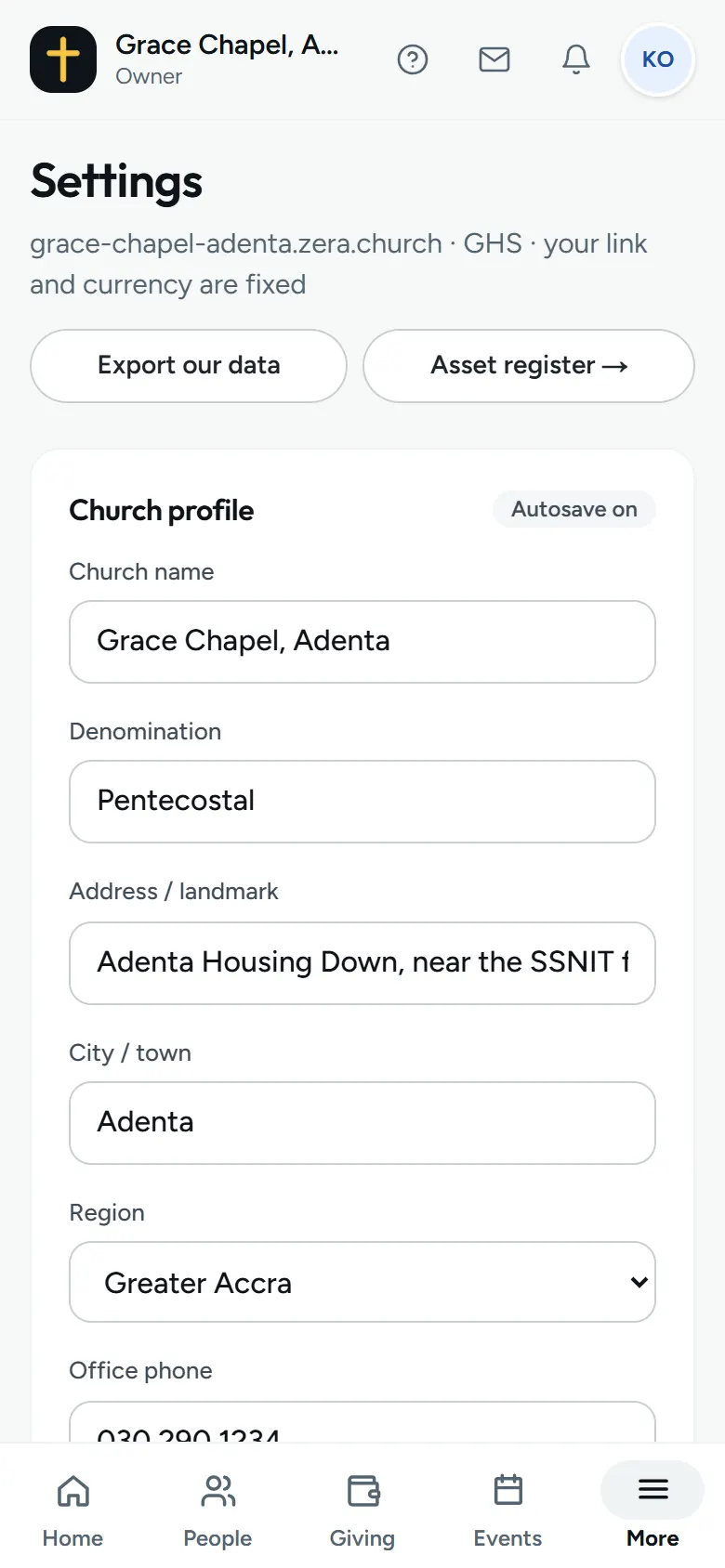
- Open Settings, at the foot of the menu.
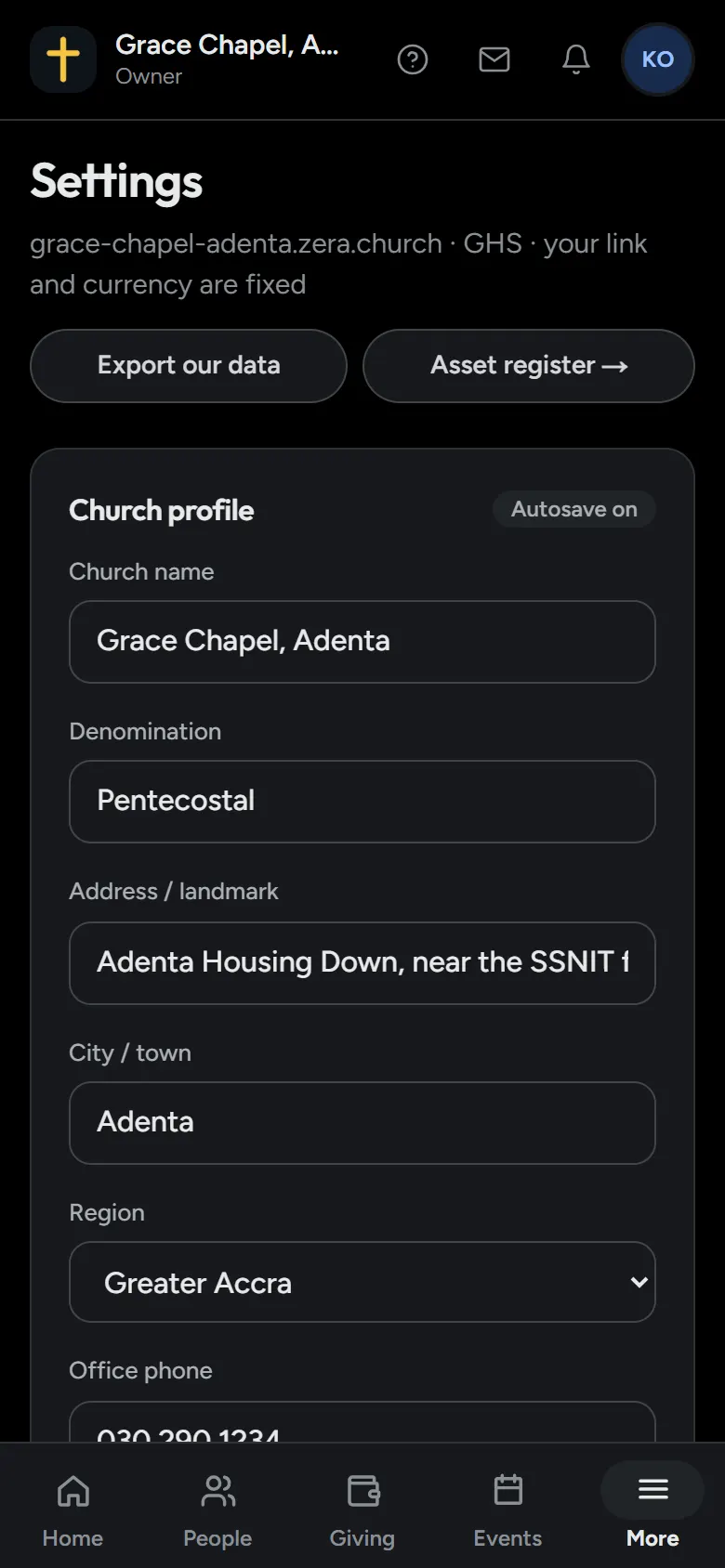
- Add where you meet, a phone number and an email. They save as you type.
- Add your logo. A square picture works best.
Your web address and your currency are set when you start, and stay as they are.
Add your members
Add people one by one, or bring in your whole list from an Excel sheet.
How to add members and import a sheetInvite members to the app
Each member can have their own link into the app. On the app, announcements and events reach them free.
How to invite membersRecord giving, or set up your funds
Record an offering or a tithe in a few taps, and add funds of your own.
How giving records workCreate an event
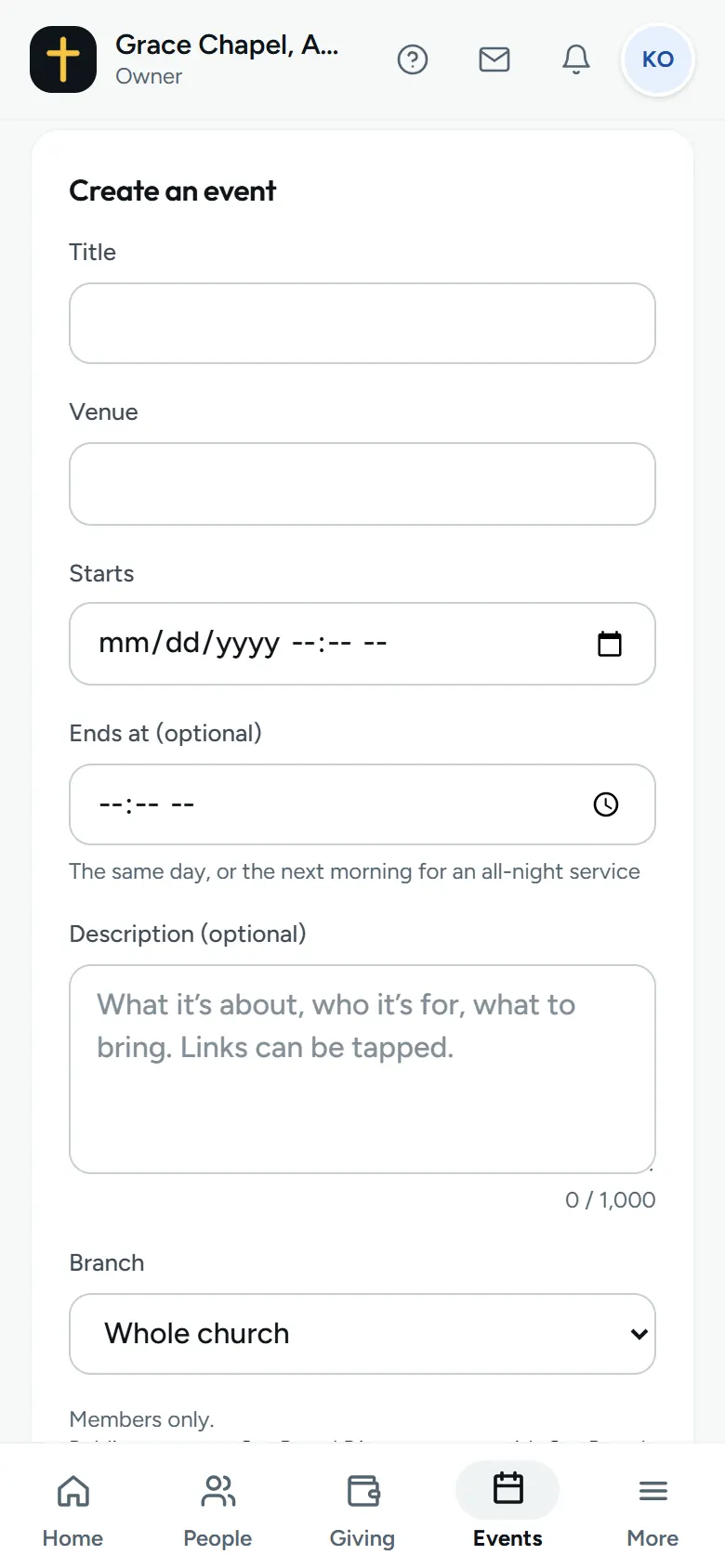
- Open Events.
- Choose Create event. Give it a title, a day and time, and where.
- Members see it in their app and can say they’re coming.
Tick “Text a reminder the day before” to reach members who aren’t on the app. You see what it costs from your SMS wallet before anything is sent.
Go live, or link your YouTube or Facebook
Your own service room, with chat, prayer requests and replays, is part of Plus.
How live services workAsk Zera to confirm your church
Plus and its free trial are for churches Zera has confirmed are real. In Settings, under Verification, there’s a short checklist: 10 people and a service recorded. Then our team gives you a call.